Scene objects and callouts
Add explanatory content to your guide
Use the Insert workspace to add scene objects, then use dimensions and annotations to explain the assembly clearly.
Fasteners
Add a fastener from the Fasteners ribbon group, then select it to set its form, nominal size, and length in Object properties. Place fasteners individually or use compatible reference geometry to fit them to an assembly feature.
Lights
Add a Point light for light emitted in all directions, or a Spot light for a directional cone. Select the light in the object tree to adjust its type-specific properties and position it in the scene.
Primitives and containers
Primitives add simple geometric objects that you can configure and place in the scene. They are useful for placeholders, simplified parts, or explanatory geometry.
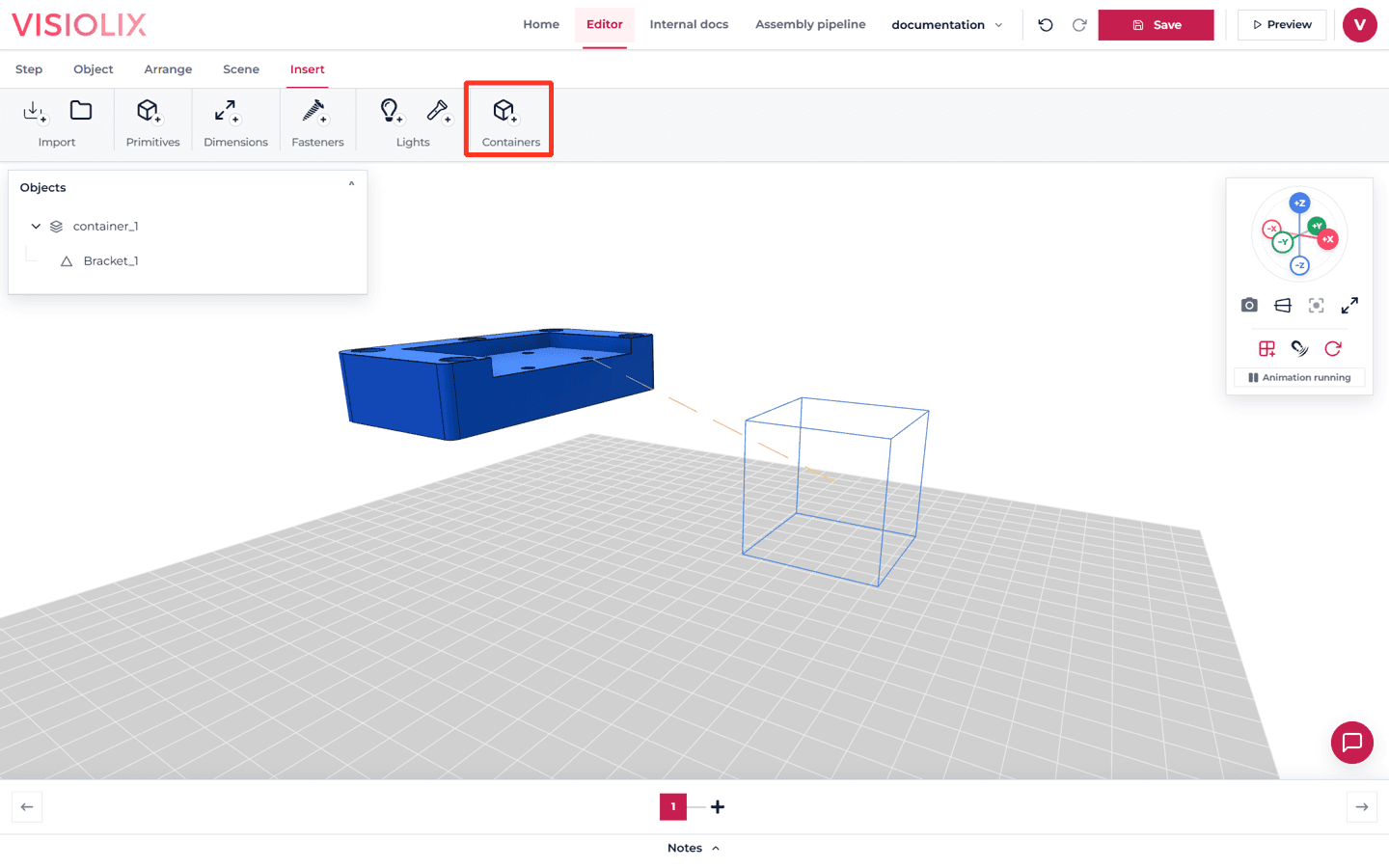
Containers are non-rendering parent objects. Their main purpose is to hold related objects in the hierarchy, so you can move or rotate the whole branch together around the container’s pivot. Containers are editor structure only and do not appear in presenter/viewer mode.
After adding a container, use the Hierarchy section in Object properties to parent objects beneath it; see Selecting and organizing objects for more about hierarchy.
Dimensions and annotations
Use Create dimension to pick two vertices, edges, faces, or axes in the viewport, then place a measurement line. The references can belong to different objects.
Use the Annotations ribbon group for a selected object to show or hide an annotation, edit its text, set its distance, and choose whether to show a leader line. Annotations make the current action or part easier for readers to identify.